
21daychange
Animated Video Process Step-by-Step Guide
Creating an animated video may seem overwhelming at first, especially if you’re new to the world of animation. But once you break it down into simple steps, the process becomes more approachable and even fun. Whether you’re making explainer videos for your business, educational content for your students, or just diving into animation as a hobby, having a clear structure can save you time and reduce stress.
In this guide, we’ll walk you through each part of the animated video process, from the spark of an idea to the final polished video ready to be shared. You’ll learn how to stay organized, avoid common pitfalls, and create videos that look professional even if you’re just starting out.
Understanding the Purpose and Planning the Concept
Before jumping into animation software, you need to take a step back and understand why you’re making this video. What message are you trying to deliver? Who is your audience? What action do you want them to take after watching?
- Think about the main goal of your video. Is it to educate, promote, entertain, or inspire?
- Identify your target audience. Kids, professionals, students, or general viewers all respond differently.
- Choose a tone and style. Will it be playful, formal, emotional, or informative?
- Create a simple brief or outline. Write down the message, estimated video length, and key visuals.
Planning your video early helps guide every decision you’ll make. It avoids wasting time redoing things later because the direction wasn’t clear from the start.
Writing the Script and Creating a Storyboard
Once you know what your video is about, the next step is writing a solid script. Think of the script as your video’s backbone. It includes everything the narrator will say and gives structure to the visuals that will accompany it.
- Keep your script short and clear. Animation works best when it’s easy to follow.
- Write in a natural, conversational tone. Imagine you’re talking to someone directly.
- Include pauses, emphasis, and transitions for better flow.
After the script, it’s time to storyboard. This is a series of sketches that map out what each scene will look like visually. You don’t have to be an artist. Simple drawings or blocks with labels will work.
- Match visuals to the script. What will be shown while the voiceover is speaking?
- Use arrows or notes to show movement or transitions.
- Make sure the visuals add value, not just decorate.
This phase acts like a blueprint. It helps catch problems early, keeps your animation on track, and gives others (if you’re working in a team) a clear picture of the final goal.
Designing the Assets and Choosing Animation Tools
Now comes the design part—creating the characters, backgrounds, icons, and all other visual elements that will appear in the video. Depending on your style and software, you can use ready-made assets or design your own from scratch.
- Define a color palette and font family for a consistent look.
- Keep the visuals simple and clean. Overloading the screen makes it harder to follow.
- Use contrast and hierarchy to guide attention.
If you’re not a designer, there are plenty of libraries and platforms that offer templates or drag-and-drop elements.
When it comes to choosing animation tools, the right software can make a big difference. Here’s a quick comparison of popular animation platforms:
| Tool | Best For | Features | Ease of Use |
| Vyond | Business explainer videos | Pre-built assets, lip-sync | Beginner-friendly |
| Adobe After Effects | Custom and complex animations | Motion graphics, visual effects | Advanced |
| Powtoon | Presentations and quick videos | Templates, characters, voiceovers | Easy |
| Animaker | Beginners and marketers | Drag-and-drop builder, text animation | Very easy |
| Blender | 3D animation | Modeling, rigging, rendering | Expert-level |
Choose the one that matches your skill level and the complexity of your video. Don’t hesitate to try a few before settling on one.
Animating Your Video Step by Step
This is the part where your story starts moving. Animation involves arranging and adjusting your visual elements in sequence to bring them to life.
- Start by importing your assets into your animation software.
- Break your video into scenes or sections based on the storyboard.
- Use keyframes to animate movement, opacity, and scaling.
- Add transitions between scenes to maintain flow.
- Keep animations smooth and natural—avoid fast or jumpy motion.
Pay attention to pacing. Each movement should match the tone and speed of the narration. Too fast, and your viewers get lost. Too slow, and they lose interest.
Also, this is a great time to add background music and sound effects. Just make sure they don’t overpower the voiceover. Audio is half of the viewer’s experience.
Recording and Syncing the Voiceover
A voiceover gives your animation a human touch. It makes the message easier to understand and keeps the viewer engaged. Recording a good voiceover doesn’t require a fancy studio—you can do it with a decent microphone in a quiet room.
- Write a script that feels natural to speak.
- Practice it a few times before recording.
- Use free tools like Audacity to record and edit audio.
- Remove background noise, pauses, and filler words.
After recording, sync the voiceover with the animation. This is where timing becomes crucial. Each scene and movement should align with the spoken words. If you’re off even by a second, it feels awkward.
Use timeline markers and adjust your keyframes until everything matches. This takes time and patience, but the result is worth it.
Editing, Feedback, and Exporting
Once the animation is complete and audio is synced, it’s time for polishing. This is where you review the full video and catch any awkward transitions, audio issues, or design glitches.
- Watch your video from beginning to end with fresh eyes.
- Look out for any scenes that feel too fast or unclear.
- Check text spelling, alignment, and size.
- Adjust volume levels for voiceover, music, and effects.
Share the draft with a few people for feedback. Ask them if the message is clear, the visuals support the story, and whether the pace feels right.
Make the necessary tweaks, and then export your video in the proper format—usually MP4 is ideal for sharing online. Choose a resolution like 1080p for clear visuals.
Frequently Asked Questions
What is the average time to make an animated video?
It depends on the complexity. A simple 1–2 minute video might take a few days to a week. More detailed projects can take several weeks, especially if custom assets and advanced animations are involved.
Do I need to know how to draw to create animated videos?
Not at all. Many tools like Vyond, Animaker, and Powtoon come with built-in libraries. You can create great videos using pre-made elements without drawing anything yourself.
Which software is best for beginners in animation?
Powtoon, Animaker, and Vyond are great for beginners. They offer easy interfaces and lots of templates, so you can focus on the message rather than the technical aspects.
Can I create an animated video on a budget?
Yes, many tools offer free versions or affordable plans. You can also find free audio, images, and icons online to reduce costs.
How important is the script in an animated video?
The script is the foundation. A weak script leads to confusion, no matter how great the visuals are. Focus on writing a clear, engaging message before jumping into visuals.
Should I hire a voiceover artist or record it myself?
It depends on your goals. For internal or casual videos, a self-recorded voiceover is fine. For professional or marketing videos, a voiceover artist can add polish and credibility.
Wrapping It All Up
Creating an animated video doesn’t have to be complicated. When you follow each step—from planning and scripting to animating and editing—you give yourself the chance to produce something engaging and effective. Each part of the process builds on the next, and rushing or skipping a step often leads to frustration down the line.
Start small. Your first video may not be perfect, but it will be a stepping stone. As you gain confidence and refine your workflow, you’ll find your style and develop a rhythm that works for you.
Remember, the goal isn’t to be flashy—it’s to communicate clearly and connect with your audience. Whether you’re a marketer, teacher, or someone with a story to tell, animated videos can help bring your ideas to life in ways that are memorable and impactful.
So go ahead—grab that script, pick a tool, and let your imagination take over. You’re ready to make your first animated video, step by step.
Best Animation Software for PC
Finding the right animation software for your PC can be a game-changer, whether you’re a beginner experimenting with frame-by-frame movement or a seasoned professional working on a full-scale production. With so many tools out there promising smooth workflows, intuitive interfaces, and Hollywood-level output, choosing one can feel overwhelming.
In this guide, we’ll explore the best animation software for PC, tailored for different skill levels and creative needs. From free programs to premium studio-grade tools, we’ll cover what makes each option shine, who it’s best for, and what to expect when you dive in.
Top Animation Software Options for PC
Whether you’re aiming for 2D, 3D, or stop-motion, the PC offers a flexible platform that supports a wide range of animation programs. Let’s break down some of the most popular and powerful software options you can use on your Windows machine.
Adobe Animate
Adobe Animate is one of the most versatile 2D animation tools available. It’s well-suited for character animation, web banners, cartoons, and interactive animations.
Why people love it:
- Smooth integration with other Adobe apps like Photoshop and Illustrator
- Ideal for frame-by-frame and tween animations
- Supports HTML5, WebGL, and other output formats
Things to consider:
- Subscription-based, so you need to pay monthly or annually
- Might be overkill for simple projects
Best for: Digital artists, intermediate animators, and web animation creators.
Blender
Blender is a free, open-source 3D animation software that has grown into one of the most powerful tools in the industry. It supports modeling, rigging, animation, simulation, rendering, compositing, and even video editing.
Why people love it:
- It’s completely free
- Community-driven with constant updates
- Professional-grade results in 3D modeling and animation
Things to consider:
- Steep learning curve
- Resource-heavy, so you need a capable PC to run it smoothly
Best for: Intermediate to advanced 3D animators, indie game developers, and visual effects artists.
Toon Boom Harmony
Used by major studios like Cartoon Network and Nickelodeon, Toon Boom Harmony is a powerhouse for traditional-style and modern 2D animation.
Why people love it:
- Industry standard for television and movie production
- Advanced tools for rigging, effects, and compositing
- Supports bitmap and vector drawing
Things to consider:
- Premium pricing, especially for advanced versions
- Learning curve for new users
Best for: Professional animators, animation studios, and students in advanced animation programs.
OpenToonz
OpenToonz is a free 2D animation software that’s been used by Studio Ghibli, so you know it has serious potential.
Why people love it:
- Free and open-source
- Lots of effects and plug-ins for customization
- Great for traditional animation workflows
Things to consider:
- User interface feels outdated to some
- Can be buggy on certain PCs
Best for: Beginners, students, and anyone interested in traditional animation.
Moho (Anime Studio)
Moho is popular for its blend of frame-by-frame and rig-based animation tools. It’s a good fit for animators who want speed and control without needing to draw each frame manually.
Why people love it:
- Bone rigging system for fast animation
- Layer-based timeline
- Good mix of vector and bitmap support
Things to consider:
- Not ideal for full 3D work
- Higher cost for the Pro version
Best for: Freelance animators, content creators, and studios focusing on 2D storytelling.
Pencil2D
Pencil2D is lightweight and simple, perfect for beginners who just want to animate without distractions.
Why people love it:
- Completely free and open-source
- Clean, easy-to-understand interface
- Great for learning hand-drawn animation
Things to consider:
- Limited features compared to advanced tools
- No support for rigging or scripting
Best for: Beginners, hobbyists, and educators teaching animation basics.
Feature Breakdown: Comparing Animation Software for PC
Here’s a quick comparison to help you decide which software fits your needs best.
| Software | 2D / 3D Support | Best For | Price Model | Skill Level | Key Strengths |
| Adobe Animate | 2D | Web and character animation | Subscription | Intermediate | Integration with Adobe apps |
| Blender | 3D | Game dev, film, modeling | Free | Intermediate-Advanced | All-in-one 3D pipeline |
| Toon Boom Harmony | 2D | Studio-level animation | Paid License | Advanced | Industry-standard features |
| OpenToonz | 2D | Traditional animation | Free | Beginner | Studio Ghibli-style workflow |
| Moho | 2D | Rig-based animation | Paid License | Intermediate | Bone rigging and vector tools |
| Pencil2D | 2D | Simple sketches | Free | Beginner | Clean and minimal UI |
Choosing the Right Animation Software Based on Your Goals
Before downloading anything, think about what type of animation you want to create and how much time you’re willing to invest in learning.
If you’re just starting out:
- Go with Pencil2D or OpenToonz. They’re free, light, and easy to learn.
- You’ll get comfortable with keyframes, onion-skinning, and frame-by-frame drawing without feeling overwhelmed.
If you’re into 3D:
- Blender is hands down the best free option. It has everything you need for modeling, rigging, and animating.
- Just be ready to watch a lot of tutorials and practice often.
If you’re working professionally or want studio-grade tools:
- Toon Boom Harmony is worth the investment if you’re aiming for commercial or film animation.
- Adobe Animate is ideal if you’re already in the Adobe ecosystem or focused on digital content for the web.
If you want speed and structure:
- Moho’s bone system makes animating quicker once your rigs are set up.
- It’s especially helpful for animators creating explainer videos or long-form content regularly.
Frequently Asked Questions About Animation Software for PC
Can I use animation software on a low-spec PC?
Yes, but stick to lightweight programs like Pencil2D or OpenToonz. Blender and Toon Boom require more processing power.
Is Blender really free?
Yes. It’s completely free, even for commercial use, thanks to the open-source GNU license.
Which software is best for hand-drawn animation?
Pencil2D and OpenToonz are both excellent for frame-by-frame, hand-drawn styles. If you’re more advanced, consider Toon Boom Harmony.
Can I animate using a mouse?
You can, but it’s limiting. A drawing tablet makes the process much easier and more natural, especially for 2D animation.
Is animation software beginner-friendly?
Some are. Pencil2D, OpenToonz, and Moho Debut are great for beginners. Others like Blender and Toon Boom have steeper learning curves.
Do these programs support audio syncing?
Yes, most of them do. You can import audio and sync it with your animation timeline, though the workflow varies by software.
Are there free alternatives to Adobe Animate?
Yes. OpenToonz and Pencil2D are great free alternatives for 2D animation. While they don’t offer the full Adobe ecosystem, they still pack powerful features.
Can I create animations for YouTube or social media using these tools?
Absolutely. Many creators use Moho, Blender, and Adobe Animate for content on platforms like YouTube and TikTok.
Conclusion: Picking the Best Animation Tool for Your PC
Choosing the best animation software for PC comes down to your experience level, budget, and creative goals. There isn’t a one-size-fits-all option, but there is a perfect fit for everyone.
If you’re just testing the waters or teaching yourself animation, Pencil2D and OpenToonz are wonderful places to start. They’re free, intuitive, and give you all the basics you need to grow. For anyone serious about 3D, Blender is a no-brainer. It’s robust, pro-level, and surprisingly powerful for a free tool.
On the other hand, if you’re a professional or planning to go pro, investing in Toon Boom Harmony or Adobe Animate will give you access to industry-level tools and workflow features that are hard to beat. Moho is a great middle ground with a strong rigging system and a cleaner user experience for ongoing projects.
Animation takes time to master, and your software should help—not hinder—that journey. Try out a few, stick with one that feels intuitive, and let your creativity take the lead.
Explainer Videos for Digital Marketing and Advertising
In today’s digital-first world, grabbing attention quickly and delivering value instantly is the name of the game. That’s where explainer videos come in. These short, engaging videos help businesses communicate their message clearly, whether they’re promoting a new product, explaining how a service works, or boosting their brand awareness.
Explainer videos have become one of the most effective tools in the digital marketer’s toolkit. They break down complex ideas into digestible content, keeping the audience informed and engaged. If you’re running a digital marketing or advertising campaign and not using explainer videos, you might be missing out on a big opportunity to connect with your audience in a memorable way.
Let’s dig deeper into how explainer videos work, why they’re so effective, and how you can use them to level up your digital marketing strategy.
Why Explainer Videos Work So Well in Digital Marketing
Explainer videos aren’t just trendy—they actually work, and there are several good reasons for that. In a world filled with distractions, short-form, visual content cuts through the noise better than long blocks of text or static images.
Here’s why explainer videos are so powerful in digital marketing:
- They simplify complex ideas
A product or service might seem difficult to explain in words, but a 60-90 second animated video can make it crystal clear. Whether you’re launching a tech product or a consulting service, explainer videos boil everything down to the essentials in a way that anyone can understand. - They boost engagement and retention
Viewers tend to remember visuals better than text. According to studies, people retain over 90% of a message when it’s presented in video format compared to just 10% when reading it in text. That’s a massive difference—and a great reason to use video. - They drive conversions
Many businesses have reported higher conversion rates after placing an explainer video on their homepage or landing page. The video builds trust and helps visitors understand the value proposition quickly, making them more likely to take action. - They support multiple channels
You can use explainer videos on your website, in social media ads, on YouTube, in email marketing, or as part of a sales pitch. They’re versatile and adaptable to different formats and audiences. - They align with mobile-first behavior
Most people browse the internet on their phones, and video content is ideal for mobile viewing. Explainer videos load quickly, don’t require scrolling, and can be watched on the go—perfect for today’s fast-paced digital environment.
Types of Explainer Videos and When to Use Them
Not all explainer videos are created the same. Different types serve different purposes depending on your goals, your product, and your audience.
Here’s a look at the most common types of explainer videos and how they fit into digital marketing strategies:
- Animated Explainer Videos
These are the most popular type, using motion graphics or cartoon-style characters to tell a story. They’re excellent for simplifying abstract concepts, especially for SaaS or tech companies. - Live-Action Explainer Videos
These feature real people and real settings. They’re great when you want to add a human touch or build emotional connections with your audience. For example, service-based businesses often use live-action videos to introduce their team or showcase customer success stories. - Whiteboard Videos
These mimic the feel of someone drawing on a whiteboard while narrating the story. They’re cost-effective, simple, and work well for educational content. - Screencast Videos
Screencasts show how software or apps work by recording the screen in real time. This is ideal for demonstrating a product interface or onboarding new users. - Kinetic Typography Videos
These rely heavily on animated text and minimal visuals. They’re effective when you want to highlight strong messages or make a bold statement.
Choosing the right style depends on your brand, budget, and message. Animated videos are often the go-to choice because they’re flexible, fun, and affordable, but live-action can add authenticity when needed.
How to Integrate Explainer Videos into Your Marketing Strategy
It’s not just about creating a great explainer video—it’s about using it strategically. Here are some practical ways to integrate explainer videos into your digital marketing and advertising campaigns:
- Place it on your homepage
A homepage explainer video can give visitors a quick overview of who you are and what you do. It helps reduce bounce rates and keeps users engaged from the start. - Use it in paid social media ads
Short, catchy explainer videos perform well on platforms like Facebook, Instagram, and TikTok. They grab attention in the feed and encourage clicks. - Include it in your email campaigns
Embedding a video or linking to it from an email can increase open and click-through rates. It also provides a more engaging experience for subscribers. - Add it to landing pages and sales funnels
Whether it’s a product launch page or a lead generation funnel, an explainer video can clarify the offer and boost conversions. - Use it at trade shows or virtual events
When you only have a minute or two to explain what you do, a well-made explainer video can deliver the pitch consistently and professionally. - Share it on YouTube and optimize for search
YouTube is the second-largest search engine. Posting your explainer video there with the right keywords, title, and description can increase your discoverability. - Use video testimonials or case studies
These are technically explainer videos too—just from the customer’s point of view. They’re powerful tools for building trust and credibility.
By using your explainer video across different marketing channels, you get more mileage out of your content and reinforce your brand message consistently.
Table: Explainer Video Types and Best Use Cases
| Type of Explainer Video | Best Use Case | Ideal For |
| Animated | Explaining abstract ideas or processes | Tech, SaaS, startups |
| Live-Action | Building human connection, brand trust | Service-based, local businesses |
| Whiteboard | Educational or training content | Schools, consultants |
| Screencast | Product demos or onboarding | Software, online tools |
| Kinetic Typography | Emphasizing key messages or statistics | Campaigns, NGOs, B2B |
FAQs About Explainer Videos in Digital Marketing
What makes a good explainer video?
A good explainer video is short, clear, and engaging. It should focus on solving a specific problem for the viewer, include a clear call-to-action, and match your brand tone. Good scripting, voiceover, and visual quality also play a big role.
How long should an explainer video be?
Most effective explainer videos are between 60 and 90 seconds. That’s enough time to cover the key points without losing the viewer’s attention.
Do I need to hire a professional agency to create one?
Not necessarily. While professional agencies offer high-quality results, there are many DIY tools like Animoto, Powtoon, and Vyond that let you create solid videos on a budget. It depends on your needs and resources.
Can explainer videos help with SEO?
Yes. When hosted on your site or YouTube, explainer videos can improve time on page and reduce bounce rates—both of which are positive SEO signals. Optimizing the video title, description, and tags also helps with visibility.
How much does it cost to make an explainer video?
Costs vary widely. DIY tools might cost under $100, while a professional agency can charge anywhere from $1,000 to $10,000+ depending on complexity and length. Many businesses find a middle ground by hiring freelancers or using templates.
Are explainer videos still relevant in 2025?
Absolutely. In fact, they’re more relevant than ever. With decreasing attention spans and rising competition, concise and visual storytelling is key. Explainer videos deliver both.
Conclusion: Elevate Your Marketing with Explainer Videos
Explainer videos have proven time and again to be a smart investment for digital marketing and advertising campaigns. They capture attention, explain value quickly, and convert viewers into customers. Whether you’re a startup looking to build awareness or an established brand launching a new product, an explainer video can give your message the clarity and punch it needs.
With so many styles and tools available, it’s easier than ever to create an explainer video that fits your brand and budget. The key is to use them strategically—integrate them into your overall marketing efforts and make sure each video has a clear goal.
In a digital world full of noise, explainer videos give your brand a voice that stands out. And that’s something every business can benefit from.
Script Timer
When you hear “Script Timer,” what comes to mind? If you work with scripts—whether it’s for video production, theater, presentations, or even software development—timing your script can be a crucial part of the process. Understanding how long your script takes to deliver helps you keep your audience engaged, hit deadlines, and maintain smooth pacing.
In this article, we’ll explore what a Script Timer is, why it matters, and how you can use one effectively. We’ll break down different approaches and tools, common challenges, and tips to make your timing more accurate and useful. Let’s dive in and get you comfortable with managing your script timing so your projects run smoothly and successfully.
Why Script Timing Matters
When you’re delivering a script—whether live or recorded—timing affects the entire experience. Imagine a speech that runs too long; the audience gets restless, the event runs behind schedule, and the message might lose impact. On the other hand, a rushed script can confuse listeners and leave important points out.
Good timing ensures your message is clear, concise, and impactful. It helps you:
- Maintain audience attention by pacing your delivery well
- Fit within time constraints set by events, broadcasts, or platforms
- Plan rehearsals and production schedules realistically
- Identify sections that need trimming or expanding before final delivery
For presenters, actors, or anyone reading scripts aloud, knowing the length of your script in minutes is invaluable. It lets you practice at a comfortable pace, prepare for pauses, and adjust your energy level.
How to Use a Script Timer Effectively
Using a Script Timer isn’t just about starting a stopwatch and hitting stop when you finish reading. To get the most from your timing, you need a process that helps you improve your script and your delivery.
Here’s how to approach it:
- Read Your Script Aloud
Don’t just skim silently. Reading aloud gives a realistic sense of timing and highlights areas where phrasing feels awkward or too dense. It also helps you practice voice modulation and breathing. - Record Your Reading
Using a phone or any recording device, record your read-through. Play it back while timing to check if your pacing fits your goals. You can also notice where you naturally pause or stumble. - Mark Pauses and Emphasis
Add notes in your script to indicate where to pause for effect or breathe. These pauses impact overall timing and add professionalism to your delivery. - Use Script Timing Tools or Apps
There are various digital tools designed to help with script timing. Some let you input your script and estimate read time based on word count or reading speed, while others allow real-time timing with notes. - Adjust for Different Audiences and Formats
A script read for a podcast may have a different pace than one for a live event or video narration. Tailor your timing accordingly.
Common Tools and Techniques for Script Timing
Different creators use different methods to manage their script timing. Here are a few popular options:
- Manual Stopwatch or Timer
The simplest method. Read your script aloud while timing yourself with any basic stopwatch or timer app. This works well for rehearsals and quick checks. - Word Count Based Estimation
Some rely on average reading speeds—usually around 130-150 words per minute for spoken content. By counting words, you can roughly estimate how long a script will take. - Dedicated Script Timing Software
Software tools like Teleprompter apps or scriptwriting programs sometimes have built-in timing features. These can highlight pacing issues and allow for real-time adjustments. - Video Editing Software
For video scripts, editors often use the video timeline to sync scripts with footage, ensuring timing matches visuals. - Professional Script Timers
In theater or broadcasting, some professionals specialize in timing scripts live, signaling actors or hosts if they need to speed up or slow down.
Tips to Improve Your Script Timing
Getting your script timing right often takes practice. Here are some useful tips:
- Practice Regularly
Frequent read-throughs help you internalize timing and delivery, making it more natural. - Focus on Clarity, Not Speed
Don’t rush just to fit a time slot. Clear speech and natural pacing are more important. - Use Pauses Strategically
Well-placed pauses give your audience time to absorb key points and add dramatic effect. - Edit Ruthlessly
If your script is too long, trim unnecessary words or simplify complex sentences. - Get Feedback
Ask friends or colleagues to listen and provide input on your pacing and clarity.
Table: Comparing Script Timing Methods
| Method | Pros | Cons | Best For |
| Manual Stopwatch | Simple, no extra tools needed | Less precise, no detailed feedback | Quick timing checks |
| Word Count Estimation | Fast rough estimate | Doesn’t account for delivery speed | Initial planning |
| Dedicated Script Timing Tools | Precise, features for notes and edits | May require learning new software | Professional video or broadcast |
| Video Editing Software | Syncs timing to visuals | Requires editing skills | Video narrations |
| Professional Script Timers | Live feedback, expert guidance | May not be available for all users | Theater, live TV or radio shows |
Frequently Asked Questions About Script Timers
What is a script timer?
A script timer is any tool or method used to measure how long it takes to read or perform a script, helping speakers manage pacing and fit within time constraints.
How do I calculate the length of my script?
You can estimate by counting words and dividing by your average speaking speed, or by timing a read-aloud session with a stopwatch or app.
Are there free tools for script timing?
Yes, many free apps and online calculators exist. Some teleprompter apps also offer built-in timing features.
Does reading speed vary?
Absolutely. Factors like speaking style, pauses, and audience affect speed. Practice helps find your natural pace.
Can script timers improve delivery?
Yes. They help identify pacing issues, encourage better preparation, and make sure your message fits allotted time without rushing or dragging.
Conclusion
Managing your script timing is essential for delivering polished, effective presentations or productions. Whether you’re preparing a speech, recording a video, or performing on stage, a Script Timer helps you keep control over pacing, clarity, and audience engagement.
By reading aloud, recording yourself, and using tools suited to your needs, you can become more confident and efficient in delivering your scripts. Remember, timing isn’t about speed — it’s about rhythm and connection. Take the time to practice, adjust, and find your flow, and your audience will thank you.
With these tips and insights, you’re ready to approach your next script with a better sense of timing. Happy scripting!
Greatest Animated Music Videos
Animated music videos are more than just eye candy—they’re imaginative portals that elevate a song from just audio to a full-blown experience. When done right, animation can transcend the boundaries of genre, era, and budget, turning a simple track into an iconic visual story. Some music videos have gone on to become legendary not just for the tunes they represent, but for the art styles, themes, and innovations they brought to the screen.
Let’s dive into the animated music videos that raised the bar and shaped the way we experience music in motion.
Why Animated Music Videos Hit Different
Animated music videos have a unique charm. Unlike live-action videos, animation offers total creative control. You’re not bound by gravity, physics, or reality. If you want your characters to float through surreal dreamscapes, shapeshift, or exist in alternate timelines, animation makes it happen.
Here’s why these videos strike a chord:
- Freedom of Expression
Artists can portray abstract or surreal concepts without constraint. Animation makes even the most far-out metaphors feel natural. - Timeless Visuals
Many animated videos age like fine wine. Styles like hand-drawn 2D, rotoscoping, or even early 3D tend to carry a nostalgic or timeless aesthetic. - Cross-Genre Flexibility
Whether it’s rock, hip-hop, electronic, or indie pop, animation finds its footing. It doesn’t cater to a specific genre—it enhances them all. - Budget Friendly with Big Impact
Compared to filming live action with sets, actors, and travel, some animated projects can be produced with smaller teams and budgets but yield unforgettable results. - Cult Following and Rewatch Value
Because of their layered visuals and deeper symbolism, animated music videos often gain cult status and encourage multiple viewings.
Iconic Animated Music Videos That Left a Mark
The history of animated music videos is stacked with creativity and innovation. Here’s a list of those that didn’t just accompany songs—they redefined them.
- “Take On Me” by a-ha
A blend of pencil-sketch animation and live-action made this 1985 hit unforgettable. The rotoscoping technique helped blend fantasy and reality in a romantic escape story that still holds up decades later. - “Clint Eastwood” by Gorillaz
Gorillaz practically redefined the animated band. With Jamie Hewlett’s visual direction, the video mixed dubby beats and hip-hop verses with eerie, zombie-infested visuals that still give off that cool-yet-creepy vibe. - “Do I Wanna Know?” by Arctic Monkeys
Using minimalist black-and-white visuals and sound wave animations that morph into various figures, this video amplified the song’s moody, hypnotic rhythm. - “Heartless” by Kanye West
Influenced by Ralph Bakshi’s work and anime, this video combines rotoscoping with bold color palettes to portray loneliness and heartbreak in a visually poetic way. - “Feel Good Inc.” by Gorillaz
A staple of early 2000s animation, this one blends cyberpunk, dystopian aesthetics with satirical social commentary. The floating windmill island alone became an instant visual trademark. - “Money for Nothing” by Dire Straits
Early 3D animation at its most charmingly awkward. The crude yet pioneering visuals helped the video become a ’80s pop culture relic. - “Breaking the Habit” by Linkin Park
Stylized anime-like visuals directed by Kazuto Nakazawa depict themes of inner struggle, addiction, and emotional turmoil with gritty artistry. - “Paranoid Android” by Radiohead
Surreal, dark, and borderline disturbing at times, this animated video matches the erratic, genre-blending song with oddball characters and metaphysical symbolism. - “Leave Me Alone” by Michael Jackson
A satirical, animated take on media frenzy and Jackson’s life. With amusement park rides, tabloid headlines, and quirky visuals, this one was ahead of its time. - “Love, Death & Robots Soundtrack Singles”
While not a traditional music video, the animated shorts tied to the show’s soundtrack mirror the artistry of animated videos. Each episode feels like a visual representation of music—short, sharp, and deep.
Underground Gems and Modern Favorites
Not all animated music videos get the spotlight, but these deserve a nod for creativity, emotion, and originality.
- “Shelter” by Porter Robinson & Madeon
A heart-wrenching animated short produced by A-1 Pictures, it tells the story of a girl living in a simulated world while her real-world reality unravels. Emotional and gorgeously animated. - “Ghost of You” by Mimi Page
Dark, haunting, and surreal animation gives this dreamy track a melancholic beauty that resonates deeply. - “Me!Me!Me!” by TeddyLoid ft. daoko
Not exactly safe for work, but definitely unforgettable. It’s a sensory overload of color, techno beats, and adult themes told in a psychedelic anime style. - “Black Light Dinner Party – Gold Chain”
With pixel art animation reminiscent of retro video games, it delivers nostalgia with an emotional core. - “Fantasy” by DyE
Creepy and captivating, this animated short blends coming-of-age themes with disturbing body horror. It’s a strange but powerful match to the track’s dreamy sound. - “Wanderlust” by Björk
A stop-motion and 3D hybrid experience that brings Icelandic surrealism to life, staying true to Björk’s consistently otherworldly aesthetic. - “King and Cross” by Ásgeir
The animation style feels like a watercolor dream—soft, mysterious, and atmospheric. - “Feel Something” by Armin van Buuren
Combines fantasy environments and surreal character designs to reflect the euphoric nature of trance music. - “Light & Day” by The Polyphonic Spree
Stop-motion meets arts-and-crafts aesthetic in this cheerful, kaleidoscopic creation.
Noteworthy Styles and Studios in Animated Music Videos
Many of these videos aren’t just driven by musicians—they rely heavily on the visual imagination of studios and directors.
Here’s a quick comparison of animation styles and notable studios behind some iconic animated music videos:
| Animation Style | Description | Notable Videos/Studios |
| Rotoscoping | Tracing over live-action footage | a-ha, Kanye West, Linkin Park |
| Stop-motion | Frame-by-frame photography of real objects | Björk, Polyphonic Spree |
| 2D Hand-Drawn | Traditional drawing-based animation | Gorillaz, Radiohead |
| 3D/CGI | Computer-generated imagery | Dire Straits, Arctic Monkeys |
| Anime-style | Japanese influence, emotional expression | Shelter, Breaking the Habit, Me!Me!Me! |
| Mixed Media | Combining styles or live-action + animation | Michael Jackson, Björk |
FAQs About Animated Music Videos
What was the first animated music video?
It’s tough to say definitively, but Queen’s “Bohemian Rhapsody” (1975) used rudimentary effects that bordered on animation. However, true animated storytelling became more prominent in the early ’80s and ’90s.
Are animated videos cheaper to produce than live action?
Sometimes. While animation can be budget-friendly, high-quality animation (especially 3D or hand-drawn) can become very expensive depending on complexity and duration.
Why do artists choose animation for music videos?
Animation allows for more creative freedom. It’s ideal for abstract concepts, fantasy themes, or when artists want to craft a visual identity without physically appearing in the video.
Do animated bands actually perform live?
Yes—Gorillaz is a prime example. They often blend animation with live musicianship using holograms or massive LED displays during concerts.
Can indie artists use animation effectively?
Absolutely. Many indie musicians collaborate with animation students or freelancers to create budget-friendly yet impactful videos. Platforms like YouTube and Vimeo are treasure troves for these.
Is animation better for storytelling in music videos?
For abstract, surreal, or deeply emotional themes, animation often outperforms live-action storytelling due to its flexibility and ability to visualize inner emotions or metaphors.
Are animated music videos making a comeback?
They never really left, but with the rise of short-form video platforms and digital tools, more artists are exploring animated formats for storytelling and viral engagement.
Wrapping It Up: The Power of Animation in Music
Animated music videos are where sound meets surrealism. They can be wild, weird, whimsical—or painfully raw and real. What makes them timeless is their ability to go places live-action simply can’t. Whether it’s the emotional punch of “Shelter,” the genre-bending brilliance of “Feel Good Inc.,” or the retro charm of “Take On Me,” these videos prove that the art of animation is more than a stylistic choice—it’s a storytelling powerhouse.
In a world where visuals matter just as much as vocals, animated music videos continue to evolve, surprise, and inspire. They aren’t just add-ons to a track—they’re a full-on experience. So the next time a song catches your ear, don’t just stream it—look it up. You might be one click away from an animated masterpiece.
What Makes Motion Graphics Truly Creative?
Motion graphics aren’t just animated visuals—they’re a blend of storytelling, design, and emotion. When done right, they can turn simple messages into engaging stories that grab attention, hold interest, and deliver impact. But what sets creative motion graphics apart from the rest?
Creative motion graphics stand out because of their originality, visual harmony, and the way they communicate without saying too much. They take complex ideas and distill them into movement that feels alive and purposeful. Whether it’s for a brand, a film, or social media content, creative motion graphics have the power to leave lasting impressions.
Here’s what fuels creativity in motion design:
- Unique visual styles that aren’t overused
- Seamless blending of typography, icons, colors, and transitions
- Purposeful storytelling through motion
- Rhythm and timing that support the message
- Unexpected elements or concepts that surprise the viewer
These elements work together to make something that isn’t just “pretty” but meaningful and memorable. Motion graphics are often the first impression of a brand or story, and being creative means that impression sticks.
Key Elements That Elevate Motion Graphics
Creating powerful motion graphics goes far beyond knowing how to animate. It involves layers of design thinking, psychology, and understanding visual rhythm. Below are the core ingredients that help turn average animation into engaging visual narratives.
- Concept-Driven Design
Everything starts with an idea. A creative motion graphic isn’t just a cool visual—it’s built on a strong concept that guides every color choice, animation style, and visual transition. - Typography That Speaks
Typography plays a huge role in how we receive messages. Animating type creatively—making it stretch, bounce, fade, or morph—adds emphasis and rhythm. Good typography in motion is expressive without being distracting. - Color and Mood
Colors instantly set a tone. A playful project may use bright hues and fast cuts, while a serious documentary might lean into muted tones and subtle transitions. Creative motion graphics use color schemes strategically, not just decoratively. - Sound Design
It’s often overlooked, but a good soundscape can elevate visuals. The pop of a shape, the whoosh of text appearing—these subtle sounds create an immersive experience. When visuals and audio are in sync, it feels professional and complete. - Seamless Transitions
Transitions guide viewers through a story. Instead of abrupt cuts, creative motion graphics use morphing shapes, zooms, or fades to keep things flowing. A smart transition can make the story feel like a single connected moment. - Pacing and Timing
Timing is everything. Too fast, and the message is lost. Too slow, and the viewer gets bored. Creative motion graphics keep a steady rhythm that aligns with the emotion being conveyed.
Table: Traditional vs Creative Motion Graphics
| Feature | Traditional Motion Graphics | Creative Motion Graphics |
| Design Style | Standard templates and layouts | Custom visuals, unique compositions |
| Animation Approach | Basic movements and fades | Dynamic, fluid, and purposeful motion |
| Conceptual Depth | Literal storytelling | Metaphors, symbolism, abstract ideas |
| Audio Integration | Generic background music | Tailored sound design with sync |
| Typography Usage | Static or basic text animation | Expressive, kinetic typography |
| Visual Flow | Scene-to-scene cuts | Seamless transitions and visual links |
| Viewer Engagement | Passive viewing | Emotionally engaging and thought-provoking |
| Use of Color | Conventional palettes | Strategic and mood-driven palettes |
This comparison shows how creative motion graphics elevate the experience and outcome by pushing beyond the basics.
Applications of Creative Motion Graphics in the Real World
Motion graphics are everywhere—on your phone, in ads, during movie intros, and even in training videos. But the creative ones? They make you stop scrolling. Let’s explore where and how they shine the most.
- Brand Storytelling
Brands use motion graphics to humanize their message. Instead of static slides, a brand video can walk you through a story—complete with visuals that feel alive and personal. This helps build trust and connection. - Social Media Content
Creative motion graphics stand out in the noise of social feeds. They can summarize content, create teaser trailers, or highlight key points from longer videos in snackable formats. The creativity keeps engagement high. - Explainer Videos
Complex ideas become simple through visuals. Think about how a fintech app explains its service using colorful characters, icons, and animations—it’s easier to understand and far more enjoyable. - Music Videos and Visualizers
Creative motion graphics are often synced to music to create visually rich stories that don’t rely on lyrics alone. This works well for both indie musicians and commercial artists alike. - User Interface Animation
Microinteractions—like a button morphing into a loading bar—are subtle, but they elevate UX. Thoughtful motion adds clarity and gives feedback to the user in a visually pleasing way. - Film and TV Titles
Think of the intros to shows like Stranger Things or Game of Thrones. They’re cinematic motion graphics at their finest—setting mood, tone, and story in the first few seconds. - Event Promos and Broadcasts
Conferences and shows use motion graphics for countdowns, speaker intros, and recaps. Creative motion gives a premium feel and keeps the energy high.
How to Get Started with Creative Motion Graphics
If you’re curious about how to bring your motion graphic ideas to life, the good news is: the tools are available, and the learning curve is friendlier than ever. Here’s a basic path to jump in and start creating.
- Pick Your Tool
Some of the most popular tools are After Effects, Blender, and Canva (for basic stuff). After Effects is the industry leader and offers unmatched flexibility for motion design. - Start with a Simple Project
Don’t aim for a full cinematic sequence. Try animating a logo, creating a short intro for a video, or bringing a quote to life with kinetic typography. - Study Motion Design Principles
Just like graphic design has rules, so does animation. Learn about easing, anticipation, squash and stretch, and timing. These concepts make motion feel natural. - Look for Inspiration
Check out sites like Behance, Dribbble, and Motionographer. Don’t copy, but study what makes those pieces work. Break them down in your head or recreate parts to learn. - Practice Storyboarding
Even if your drawings are rough, sketching out your ideas helps bring clarity. It also helps organize timing and transitions before you start animating. - Experiment with Sound
Play with adding sound effects or subtle background music. It’s a powerful element that helps your visuals land with more weight. - Keep Your Projects Short
Especially when learning, shorter is better. A 15–30 second motion graphic is easier to manage and still leaves room for creativity. - Get Feedback and Iterate
Share your work with others—online communities are great for this. You’ll learn faster through feedback and by revising your work.
Frequently Asked Questions
What are creative motion graphics used for?
Creative motion graphics are used in branding, social media content, explainer videos, music videos, TV intros, and even mobile apps. They’re meant to make content more engaging, easier to understand, and visually compelling.
What’s the difference between motion graphics and animation?
Motion graphics are a form of animation focused on moving design elements—like text, shapes, and icons. Animation can be broader and include character-based storytelling, stop-motion, and more detailed scenes.
Can beginners learn motion graphics without formal training?
Yes, many self-taught motion designers begin by watching tutorials, practicing regularly, and studying design principles. With dedication and practice, anyone can build skill and confidence in this field.
Which software is best for creative motion graphics?
Adobe After Effects is the most widely used for high-quality motion design. Blender is another option, especially if you’re exploring 3D. Canva offers simpler motion tools for social media and quick projects.
How long does it take to create a creative motion graphic?
It depends on complexity. A 30-second high-quality piece might take anywhere from a day to several weeks. Concept development, design, animation, and audio all take time to craft thoughtfully.
Do motion graphics always need sound?
Not always, but sound enhances the viewing experience. Even simple sound effects can bring life to animations and help with emotional engagement.
Is it expensive to hire someone for creative motion graphics?
Costs vary. A freelance designer might charge a few hundred dollars for a short animation, while agencies may charge thousands depending on the project scope. It’s all about quality, complexity, and experience.
Wrapping It All Up: The Impact of Creative Motion Graphics
Creative motion graphics are more than just animated designs—they’re powerful visual tools that can transform how messages are told and received. Whether you’re telling a brand story, launching a product, or simply trying to make your content more engaging, motion design can make a lasting impression.
By blending design, storytelling, timing, and emotion, motion graphics help viewers feel the message, not just see it. The best part? You don’t need a Hollywood budget or a studio team to get started. All it takes is a good idea, the right tools, and a bit of patience.
So, whether you’re a designer, marketer, or creator, consider adding creative motion graphics to your toolkit. Explore new styles, challenge your creativity, and tell stories in motion that connect.
The world is moving—your message should, too.
YouTube Banner Sizes
Creating a YouTube banner might seem like a small task, but it plays a huge role in shaping your channel’s identity. A well-sized, correctly formatted banner can instantly capture a viewer’s attention, convey professionalism, and set the tone for your entire brand. But getting that perfect fit isn’t as easy as uploading an image and calling it a day. YouTube has specific dimensions and guidelines that, if not followed, can make your banner look cut off, blurry, or just awkward on certain devices.
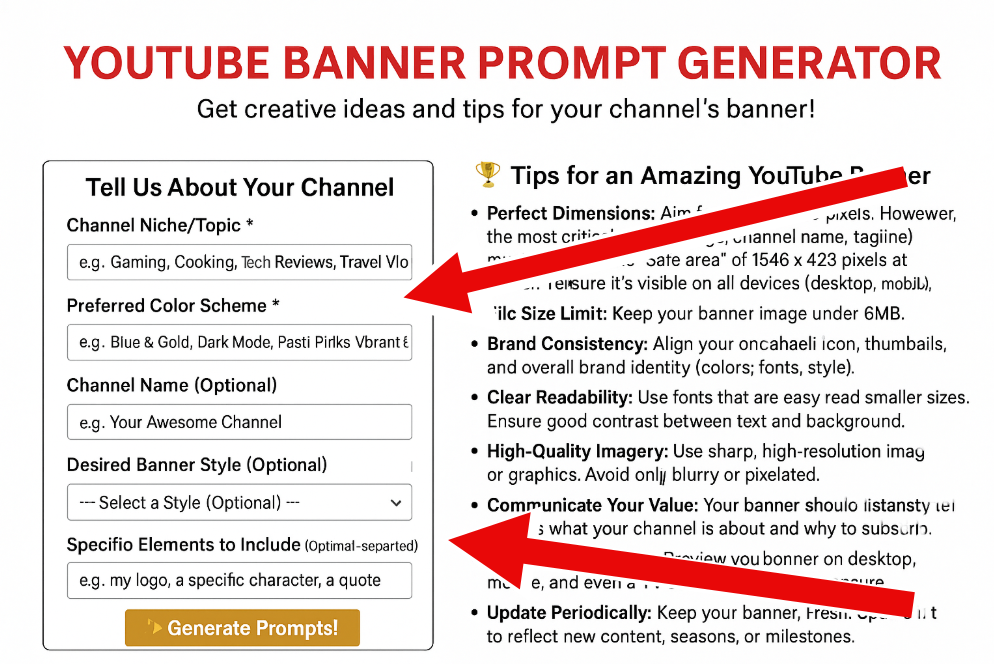
In this guide, we’ll break down the correct YouTube banner sizes, explore why they matter, and walk you through tips to make sure your channel art looks great no matter where it’s viewed. We’ll also cover how banners display across various devices, give design tips to make your banner stand out, and answer some common questions along the way.
Let’s make sure your banner represents your channel the way it should.
Ideal YouTube Banner Dimensions and Safe Zones
If you’ve ever uploaded a YouTube banner only to see it look strange on a phone, desktop, or TV, you’re not alone. YouTube uses a responsive design that changes how your banner appears depending on the device, so using the correct size and layout is key.
Recommended YouTube Banner Dimensions
Here are the official size guidelines for your YouTube channel art:
| Element | Size/Dimensions |
| Recommended Banner Size | 2560 x 1440 pixels |
| Minimum Banner Size | 2048 x 1152 pixels |
| Maximum File Size | 6 MB |
| Safe Area for Text/Logos | 1546 x 423 pixels (centered) |
| Aspect Ratio | 16:9 |
| Supported File Formats | JPG, PNG, BMP, or GIF (no animation) |
What is the Safe Area?
The safe area is the part of your banner that will always be visible across all devices. This is a centered section of 1546 x 423 pixels. If you put your channel name, logo, or any important visual element outside this safe zone, there’s a high chance it might get cropped on some screens.
Why it matters:
Different devices show different portions of your banner:
- On mobile, only the safe zone is shown.
- On desktop, a little more of the sides may appear.
- On TV screens, the full banner may be visible.
This means you should design your banner with the safe area as your priority, and let any background artwork or filler extend into the larger canvas.
How YouTube Banners Display on Different Devices
Your banner needs to look good whether someone is watching from their smartphone during a commute or sitting on a couch watching from a smart TV. Let’s talk about how YouTube handles banners across various platforms.
Mobile
- Only the center safe area (1546 x 423 px) is displayed.
- This is the most limiting view.
- Most users check channels from their phones, so make this area your design focus.
Tablet
- Slightly wider view than mobile but still trims some of the edges.
- Avoid placing text or logos outside the safe zone even for tablet users.
Desktop
- Depending on the screen size and browser window, more of the sides of your banner may be shown.
- Desktop banners usually display around 2560 x 423 px but still prioritize the safe zone.
TV
- On a television, the entire 2560 x 1440 px image is shown.
- This gives you a lot of room for background design elements, textures, or additional branding.
Key tip: Always preview your banner before publishing. Use YouTube’s preview tool during the upload process to see how it looks across different devices.
Design Tips for a Professional YouTube Banner
Creating a banner is more than just knowing the dimensions. It’s about making it visually appealing, readable, and in line with your channel’s brand. Here are some simple tips to help you do that effectively.
- Keep it clean and simple
Don’t clutter your banner with too many elements. Stick to a clear message, logo, or tagline. - Focus on the safe area
Make sure your channel name, logo, and any call-to-action text (like upload schedules or taglines) are placed within the 1546 x 423 px center zone. - Use brand colors and fonts
If you have a logo or color scheme, use those in your banner to keep your branding consistent. - Choose high-quality images
A blurry banner can be a big turn-off. Always use high-resolution graphics that are properly optimized. - Add social media links below the banner
You can’t embed clickable icons into the banner itself, but you can place links just below it in your channel settings. - Test your design on different screens
What looks good on a desktop might get cut off on mobile. Preview it before finalizing. - Avoid too much text
Use just a few words or a short phrase. Too much writing can be hard to read on smaller screens. - Try a template
Many design tools offer templates tailored to YouTube’s banner guidelines. They help you stay within the safe zone and look professional.
Popular design tools for banners include:
- Canva
- Adobe Express
- Fotor
- Snappa
These platforms often have built-in YouTube banner templates that follow current specs.
Frequently Asked Questions About YouTube Banner Sizes
What is the best size for a YouTube banner in 2025?
The best size remains 2560 x 1440 pixels, with a centered safe area of 1546 x 423 pixels.
Why does my YouTube banner look cropped on mobile?
Because mobile devices only display the center safe zone. If your text or logo is outside of this, it won’t be visible on phones.
Can I upload a banner larger than 2560 x 1440?
YouTube may compress or reject images larger than the recommended size. It’s best to stick to 2560 x 1440 and under 6 MB in file size.
What happens if my file is too large?
YouTube will not allow uploads over 6 MB. Compress your image using tools like TinyPNG or export it with lower quality to reduce file size.
What format should my banner be in?
JPG and PNG are the most commonly used. PNG is preferred if your banner has transparency or sharp text.
Can I use animated GIFs in a banner?
No, YouTube does not support animated banners. Stick to static image formats like JPG or PNG.
How do I make sure my banner looks good on all devices?
Use the YouTube banner preview tool during upload and make sure all vital content is inside the safe area of 1546 x 423 pixels.
Is there a free tool to make YouTube banners?
Yes, Canva and Adobe Express offer free templates and tools specifically designed for YouTube channel art.
Can I change my YouTube banner from mobile?
Yes, but it’s easier and more precise when done from a desktop. The mobile app has limited editing features for banner uploads.
Conclusion: Get Your YouTube Banner Right From the Start
Your YouTube banner isn’t just a background image—it’s your brand’s first impression. Whether you’re a gaming creator, educator, vlogger, or business, the right banner size can make or break that first connection with a new viewer.
By sticking to the recommended dimensions (2560 x 1440 px), keeping key elements in the safe zone (1546 x 423 px), and paying attention to how banners show up on different devices, you’ll ensure that your channel looks polished and professional.
Design tools like Canva or Adobe Express can save you time and effort, especially with templates already aligned to YouTube’s specs. And always remember—less is more. Clean, clear, and centered is the way to go.
So if you’re about to create or update your YouTube banner, take the time to do it right. Preview it, tweak it, and make sure it speaks to who you are and what your channel stands for. Your audience will appreciate the effort, and your channel will look better because of it.
Want your channel to stand out? Start with a banner that tells your story before your videos even begin.
Explainer Videos for Big Data and Analytics
Big data and analytics can be complex topics to grasp, especially for people outside the tech world. Yet, more and more companies are depending on them to drive decision-making, improve efficiency, and gain a competitive edge. So how do you make these complicated concepts accessible and engaging? That’s where explainer videos come in. These short, informative videos have become one of the most powerful tools for breaking down tough topics and making them easy to understand.
In this article, we’ll look at how explainer videos help demystify big data and analytics, why businesses are turning to them, and what goes into creating a great one. Whether you’re part of a marketing team, a startup founder, or someone trying to bring clarity to your company’s complex data products, this guide is for you.
Why Use Explainer Videos for Big Data and Analytics?
When people hear “big data” or “analytics,” their eyes might glaze over. These terms are often associated with things like machine learning algorithms, cloud platforms, and complex dashboards. For non-technical audiences, that can feel like a foreign language. But explainer videos change that.
- They simplify abstract concepts
Explainer videos take what would be a dense paragraph of technical jargon and turn it into something visual and easy to follow. Through metaphors, storytelling, and animation, they break down ideas so that anyone can understand what’s happening behind the scenes. - They engage people quickly
Unlike articles or manuals, videos don’t require much effort from the viewer. You hit play, and the content flows. For marketing teams, that’s gold—especially when trying to capture attention on social media or landing pages. - They make a great first impression
If you’re launching a product or service that involves big data analytics, an explainer video is a smart way to introduce it. It builds confidence and creates a sense of familiarity with a subject that can otherwise feel intimidating. - They boost internal understanding
It’s not just for customers. Explainer videos can help employees understand how your analytics tools work or how your organization handles data. This can be especially helpful during onboarding or when rolling out new systems.
Key Elements of an Effective Big Data Explainer Video
Creating a successful explainer video takes more than just a few animations and a voiceover. You need to craft a message that connects and educates.
- A clear and focused script
The script is the foundation. It should zero in on a single core message. Are you explaining what your data tool does? Or how it solves a specific problem? Either way, it should stay focused and avoid trying to cover too much at once. - Simple visuals that support the message
When it comes to visual elements, less is often more. Clean animations, icons, and graphics that support the story—not distract from it—work best. Avoid overly technical charts or figures unless they’re essential. - Real-world analogies
One of the best tricks in an explainer video is using everyday comparisons. Think of describing a data pipeline like a water system or showing data filtering like sorting mail. These analogies create “aha” moments for viewers. - Professional voiceover
A smooth, friendly voice can make even the densest topics feel digestible. Whether you go with male or female, human or AI, the voice should be easy to understand and engaging. - Strong call to action (CTA)
What do you want the viewer to do after watching? Sign up? Book a demo? Read more? Every explainer video should have a clear next step.
Use Cases: How Businesses Are Using Explainer Videos for Big Data
Explainer videos are not just for startups with flashy data products. Companies across industries are using them to communicate everything from internal processes to customer-facing tools. Here’s how different sectors are putting them to work:
- Healthcare
Hospitals and health tech companies use explainer videos to show how their data-driven systems help in early diagnosis, patient monitoring, or treatment customization. It’s a way to bridge the gap between technical capabilities and patient care benefits. - Finance and Banking
Banks and fintech startups explain how their data analytics tools detect fraud, assess credit risk, or offer personalized financial advice. Instead of showing code or dashboards, they focus on scenarios a customer might actually experience. - Retail and E-commerce
Online stores and platforms use data to track customer behavior and improve recommendations. Explainer videos help teams across marketing, logistics, and customer service understand how those systems work and why they matter. - Government and Public Policy
Governments are now using data dashboards and analytics tools to monitor city services, public health, and crime. Explainer videos help build transparency and trust with the public. - Education and Training
Universities and online course providers create videos to explain how data is used in research or student performance tracking. These are often targeted at students or faculty who need to get on board with new platforms.
Sample Table: Explainer Video Use Cases in Big Data
| Industry | Purpose of Video | Target Audience |
| Healthcare | Explain predictive analytics in patient care | Patients, doctors |
| Finance | Show fraud detection using real-time analytics | Customers, investors |
| E-commerce | Demonstrate recommendation engines | Customers, sales teams |
| Government | Break down public dashboards | Citizens, media |
| Education | Introduce student performance tracking | Students, staff |
FAQs About Explainer Videos for Big Data and Analytics
What length should an explainer video be?
Most effective explainer videos are between 60 to 90 seconds. That’s usually enough time to explain a single concept clearly without losing viewer interest.
How much do these videos cost to make?
Costs can range widely depending on style, length, and complexity. A simple animated video might cost a few thousand dollars, while high-end productions can go well beyond that. However, with today’s tools, it’s also possible to make quality videos with a small budget.
Can I use stock visuals or templates?
Yes, many platforms offer templates that can speed up production. Just make sure the visuals match your brand and don’t overwhelm the message. Sometimes custom visuals are worth the extra investment.
Do explainer videos help with SEO or online visibility?
Absolutely. Hosting videos on YouTube or embedding them on your website can improve SEO. They also keep visitors on your site longer, which can boost rankings.
What’s the best style for a big data explainer video?
Animated videos are often the go-to for abstract topics like big data. They let you illustrate concepts like data flow, cloud systems, or algorithmic processes in a clean and imaginative way. Live-action videos can work too, especially for showcasing people and real-life use cases.
Conclusion
Explainer videos are one of the most effective tools for making big data and analytics more accessible. Whether you’re introducing a new product, training your team, or trying to build trust with customers, a well-crafted video can bridge the gap between complexity and clarity.
By keeping the message simple, using relatable visuals, and focusing on real-world benefits, businesses can use explainer videos to drive understanding—and action. In a world drowning in data, the ability to communicate your insights clearly could be your biggest advantage.
So if you’ve got a powerful analytics tool or a story buried under technical layers, maybe it’s time to hit record. Your audience is more ready than you think.
Sequential Storytelling
Sequential storytelling is more than just putting scenes or events in order—it’s about guiding someone through an experience, step by step, in a way that feels natural, clear, and compelling. Whether it’s in writing, film, comics, or even marketing, this technique plays a crucial role in holding attention and creating emotional impact.
Let’s dive into the heart of what makes sequential storytelling work, how it shows up in different fields, and how you can use it effectively in your own projects.
What is Sequential Storytelling?
Sequential storytelling is the art of telling a story in a logical sequence, where one part naturally flows into the next. It’s about structure. Think of it like walking someone down a path—each step builds on the last, leading them closer to the destination.
This method isn’t new. It dates back to cave paintings, ancient tapestries, and illustrated manuscripts. People have always found ways to organize stories into meaningful sequences.
Some key features of sequential storytelling include:
- A clear beginning, middle, and end
- Cause-and-effect relationships
- Characters evolving over time
- Events unfolding in chronological or thematic order
Whether it’s a three-panel comic strip or a brand’s full campaign, the structure helps people follow along and stay engaged.
Where We See Sequential Storytelling in Everyday Life
You might not notice it, but sequential storytelling is everywhere—especially in how we absorb information or make decisions.
In Books and Novels
Most fiction follows a sequential narrative. One chapter sets the tone, the next builds conflict, and eventually, there’s a resolution. It gives readers time to connect with characters and digest plot developments.
In Comics and Graphic Novels
Sequential storytelling is the backbone of comics. Each panel represents a moment in time. Put them together, and you get a story that moves—visually and emotionally. Artists play with timing, pacing, and layout to guide the reader’s eyes and feelings.
In Film and TV
Scene-by-scene progression is crucial in film. Directors and screenwriters decide what happens and when. Flashbacks, cuts, and transitions are all part of managing time and order.
In Marketing and Branding
A product launch often follows a story arc: identify a problem, introduce a solution, highlight the benefits, and share testimonials. Even social media posts can tell stories in sequence to lead people from awareness to action.
In Presentations and Training
Educators and trainers often use sequential storytelling to explain complex ideas. Instead of throwing everything at once, they walk the audience through the journey—step by step.
Why Sequential Storytelling Works So Well
Sequential storytelling resonates because it mirrors how we experience life. We live moment to moment, one event after another. Stories that follow this pattern are easier to understand and remember.
Here’s why it works:
- Clarity: Organizing information in a sequence removes confusion. It’s like giving someone a map instead of random directions.
- Engagement: When each part leads to the next, people want to keep going. They’re curious to see what happens.
- Emotional Impact: A well-timed reveal or twist hits harder when there’s buildup.
- Retention: People are more likely to remember information told in a story format compared to isolated facts.
- Connection: It creates a journey. You’re inviting someone to walk with you, not just observe from afar.
Let’s break it down in the table below:
| Benefit | What It Means for the Audience |
| Clear Structure | Easier to follow and digest |
| Builds Anticipation | Keeps people interested |
| Stronger Recall | Helps them remember the message |
| Emotional Resonance | Makes it more relatable and meaningful |
| Smooth Transitions | No sudden jumps or confusion |
How to Use Sequential Storytelling Effectively
You don’t need to be a novelist or director to use this method. Whether you’re writing a blog post, designing a slideshow, or pitching an idea, you can apply the same principles.
Here are some practical tips:
- Start with the “Why”: Make sure your story has a purpose. What are you trying to say or solve?
- Define the Beginning: This is where you introduce the characters, context, or problem. Set the scene clearly.
- Build the Middle: Let the story unfold. Add challenges, decisions, and key moments. Keep things moving.
- End with Impact: The conclusion should resolve something. Offer a lesson, a takeaway, or a next step.
- Stay Consistent: Don’t jump around too much. If you need to shift timelines, make it easy to follow.
- Use Transitions Wisely: Words like “then,” “next,” “after that,” or “meanwhile” help guide the reader.
- Pace Yourself: Don’t rush through the key parts. Let the audience settle into each phase before moving on.
One more thing—keep your audience in mind. How much do they already know? What tone will resonate with them? Use those answers to shape your flow.
FAQs About Sequential Storytelling
What’s the difference between sequential storytelling and regular storytelling?
Sequential storytelling focuses on order. It’s about arranging events step by step so the audience can follow clearly. Regular storytelling might skip around or be more abstract.
Can I use sequential storytelling in non-fiction writing?
Absolutely. In fact, it’s one of the best ways to explain real-world ideas. Use it to walk readers through events, processes, or transformations.
Does it only apply to visual media like comics or videos?
Not at all. Written articles, speeches, lessons, and even emails can follow a sequential structure. It’s about how you organize the content, not the format.
Is sequential storytelling only linear?
Mostly, but it doesn’t have to be strictly chronological. You can play with time—like using flashbacks or parallel stories—as long as it feels organized and intentional.
Why does this type of storytelling feel more natural?
Because our minds like patterns. We understand stories better when they follow a cause-and-effect path. It mirrors how we experience the world.
Conclusion
Sequential storytelling may sound technical, but it’s deeply human. It’s the way we tell our friends about our day, explain a recipe, or share a life lesson. When used intentionally, it becomes a powerful way to inform, inspire, and connect.
If you’re creating content, telling a brand story, or simply trying to explain something important, don’t underestimate the power of good sequencing. Walk your audience through the experience—not with leaps and bounds, but with careful, steady steps that make them want to keep going.
In the end, that’s what all good storytelling does—it brings people along for the journey.
Vmail: A Modern Communication Solution for the Digital Era
Vmail, short for Voice Mail or Voice Email, is a digital hybrid communication tool that combines the traditional concept of voice messages with the efficiency and flexibility of email. Instead of typing out long messages or waiting for someone to pick up the phone, you can simply record your voice and send it directly to someone’s inbox. It’s like email but with your voice — expressive, personal, and faster to deliver thoughts or ideas.
Vmail works through a variety of platforms, apps, and integrated tools that allow users to record audio messages and deliver them via email or messaging services. In some setups, it works entirely over email (you record and attach a voice file), while others use dedicated vmail software to manage recordings, playback, and delivery more efficiently.
The process is typically straightforward:
- Open the vmail app or tool
- Hit the record button to speak your message
- Review (optional), then hit send
- Recipient receives a playable voice message in their inbox
This convenience-oriented tool has been adopted in business settings, education, personal communication, and customer service environments where tone, clarity, and speed are essential.
Here’s why it’s catching on:
- Saves time — no need to type out long emails
- Captures tone and emotion — ideal for nuanced communication
- Great for multitasking — record on the go
- Breaks language barriers — easier for non-native writers
- Enhances accessibility — useful for visually impaired users
Vmail blends the best of asynchronous communication with a human touch, making it a go-to method for people who want to sound more authentic and save time in the process.
Where Is Vmail Used and Who Benefits Most?
The appeal of vmail stretches across industries and user types. It’s not just a novelty tool — it’s a practical solution for modern communication challenges.
In business settings:
- Sales professionals use vmail to follow up with leads more personally
- Managers use it to deliver updates or praise with emotional nuance
- HR departments use it to improve onboarding and communication with remote employees
In customer support:
- Brands can use vmail to provide more compassionate responses
- Customers appreciate faster, more human support
In education:
- Teachers can leave vmail for students to explain complex topics
- Students can submit oral assignments or updates
For individuals:
- Friends and family use vmail for birthday greetings or check-ins
- Long-distance couples use it to maintain closeness
And for people with disabilities:
- Vmail is often easier than typing, especially for people with limited mobility or vision
The platform also thrives in remote workspaces and global teams. When employees are scattered across time zones, it’s not always possible to get on a live call. With vmail, you deliver your message, tone intact, and your colleague can respond when they’re ready.
Here are some specific examples of tools where vmail has found a home:
- Gmail (with add-ons like Mote or Vocaroo)
- Microsoft Outlook (via integrated voice messaging)
- Slack (voice clips feature)
- WhatsApp (voice message)
- LinkedIn (voice notes in messages)
- Loom and Vidyard (often video-first but can support audio-only)
Vmail isn’t just for fun—it’s productivity-enhancing and adaptable to almost every communication channel that exists today.
Why Vmail Is Better Than Text-Only Communication
Text is efficient, but it’s not always effective. There are countless moments in communication when tone is everything — and that’s where vmail shines. Misunderstandings can arise in emails or texts due to the lack of inflection, sarcasm, excitement, or emotion.
Here’s how vmail stands out:
- Emotionally rich: A voice conveys sincerity, urgency, joy, or disappointment in ways that plain text cannot.
- Time-saving: People speak much faster than they type. A two-minute voice message could replace a ten-minute email draft.
- Less miscommunication: Hearing tone and pacing reduces the chances of your message being misinterpreted.
- Improved response rates: In sales or customer support, a voice message often gets a quicker response than a standard email.
- Stronger connections: In leadership and management, hearing a voice from the top builds trust and approachability.
- Language-friendly: Easier for people who are more comfortable speaking than writing, especially in their non-native language.
Even in high-tech environments, the human voice still plays a critical role. With the rise of AI-generated texts and automated bots, vmail brings a sense of authenticity. You know there’s a real person behind the message — someone who cared enough to speak directly to you.
In addition, with better tools for dictation and transcription, vmail can now be paired with automatic subtitles or written summaries. This combo ensures accessibility for those who prefer reading while preserving the original voice experience.
FAQs About Vmail
What’s the difference between vmail and voicemail?
Vmail is typically a recorded voice message that is sent via email or messaging platforms, whereas voicemail is a recorded message left when someone doesn’t answer a phone call. Vmail is usually more intentional and integrated with digital communication tools.
Do I need special software to send vmail?
Not necessarily. Many email platforms and messaging apps support audio file attachments or built-in voice notes. However, for advanced features like playback tracking or transcription, dedicated vmail apps may be useful.
Is vmail secure to use in business?
Yes, as long as you’re using secure platforms. Just like email, it’s important to follow company policies for communication and ensure that private or sensitive messages are encrypted or stored safely.
Can vmail be transcribed?
Yes. Many vmail tools now offer auto-transcription, allowing recipients to read a text version of the audio. This is great for accessibility and convenience.
How long should a vmail be?
Ideally, under two minutes. Vmail is meant to be snappy and to the point — long enough to convey your message but short enough to hold attention.
What file types are supported for vmail?
Most vmail tools use formats like MP3, WAV, or M4A. These are universally supported and easy to play on nearly any device.
Is vmail mobile-friendly?
Absolutely. In fact, many vmail recordings are made and sent from mobile phones. Apps like WhatsApp and LinkedIn have voice note features designed with mobile in mind.
Can I use vmail for marketing?
Yes, especially for personal outreach in sales. A voice message in a cold email or follow-up can break through the noise of a crowded inbox and establish a more human connection.
How is vmail different from video messages?
Vmail is audio-only. It’s faster to record, smaller in file size, and less intrusive than video. It’s a good middle ground between email and video communication.
What are some popular vmail tools or services?
Some of the popular tools include:
- Mote
- Vocaroo
- Loom (with audio-only option)
- WhatsApp voice messages
- Slack audio clips
- Google Voice
- LinkedIn voice messaging
Conclusion
Vmail is more than just a tech novelty — it’s a bridge between convenience and connection. As digital communication continues to evolve, tools that preserve the emotional resonance of human speech are becoming more valuable. Whether you’re leading a team, nurturing a client relationship, teaching a class, or just checking in with a friend, vmail adds clarity, warmth, and personality that text alone can’t deliver.
Its applications stretch across industries and personal use cases, making it a flexible solution for both quick updates and deeper conversations. In a world where inboxes are flooded with cold, robotic messages, a simple voice can cut through the noise.
Vmail gives you a chance to be heard — literally.
If you’re not using vmail yet, now might be the time to find your voice.